There is a version of Claude that already knows who you are, and you are one evening away from it.
Right now you probably open a chat, explain who you are, explain the project, paste the same context, get an answer and close the tab. Tomorrow it starts from zero again.
The model is not the limitation. Nothing you tell it survives the conversation, so every session begins with the same twenty minutes of setup you did yesterday.
Everything below is set up once. After that it works in every session without you doing anything. Twelve steps, in the order that matters, all of it from Anthropic's own release notes.
One thing before you start: some of this lives in the chat app and some only in Cowork. I have marked which is which, because trying to find a Cowork feature inside a normal chat is the fastest way to conclude none of this exists.
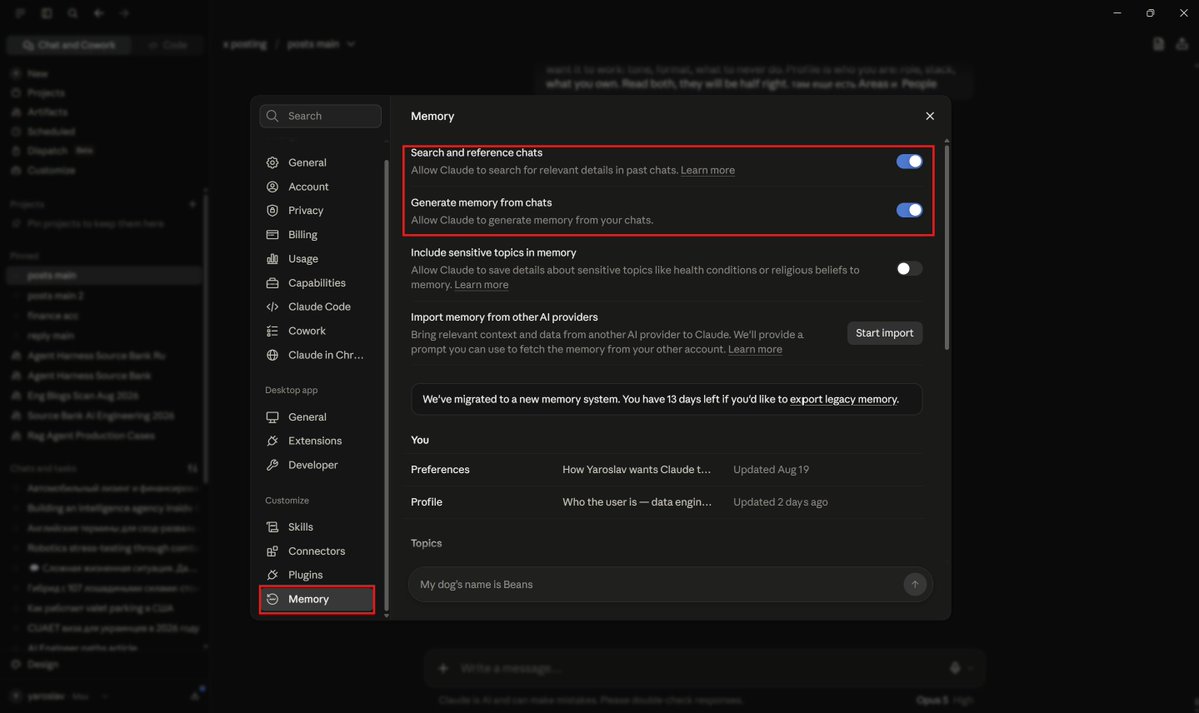
1. Open your memory and read it
Bottom Left → Settings → Memory
Everything below reads from this, so start here.
Turn on Search and reference chats and Generate memory from chats. Without the second one there is nothing to manage. Leave Include sensitive topics off unless you have a reason.
If you are coming from another provider, Import memory pulls your context across so you skip the cold start.
Then read what Claude has already written about you. Preferences is how you want it to work: tone, format, what to never do. Profile is who you are: role, stack, what you own. Areas covers the domains you keep returning to, and People the names that keep coming up in your work. All four are generated from your chats, so expect them to be half right.
To fix any of it, use the text box under Topics and write plainly. "I no longer work on X." "Stop assuming Postgres." It rewrites the entry.
Two things worth adding today: what you do and what you are working on this month, and the three things you never want in an output.
2. Turn your recurring work into projects
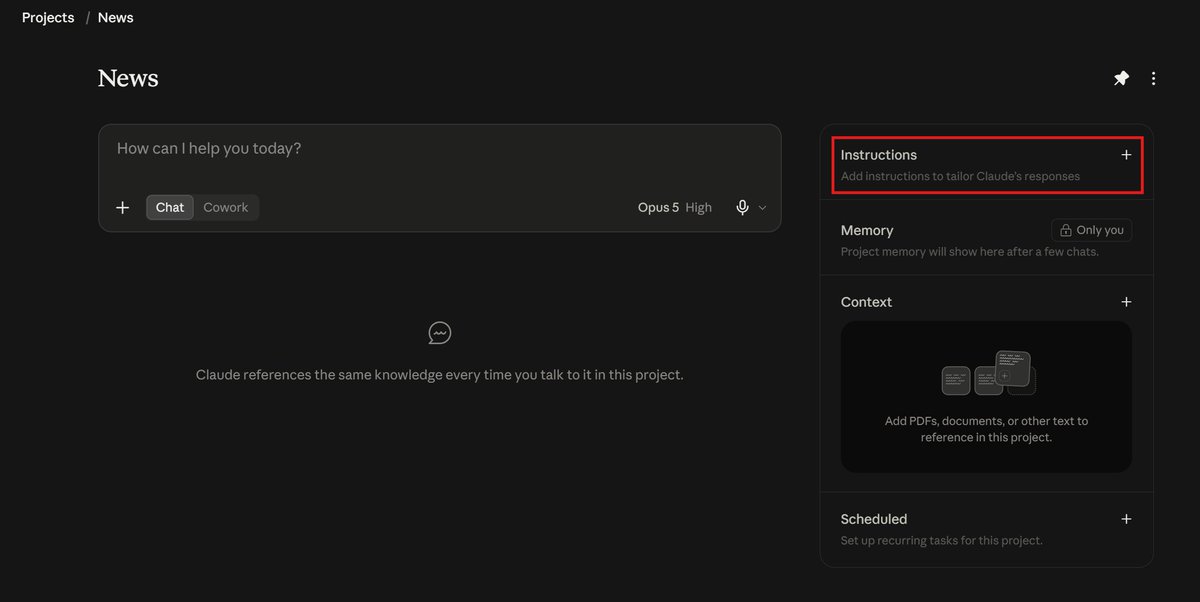
Sidebar → Projects → New project
This is the step people skip. They keep working in normal chats and wonder why they explain themselves every morning. A chat is disposable. A project is a place.
Create one for every job you do more than twice. Newsletter. Client work. Job hunt. Each one keeps its own instructions, its own files, and its own memory, so what Claude learns in one does not leak into another.
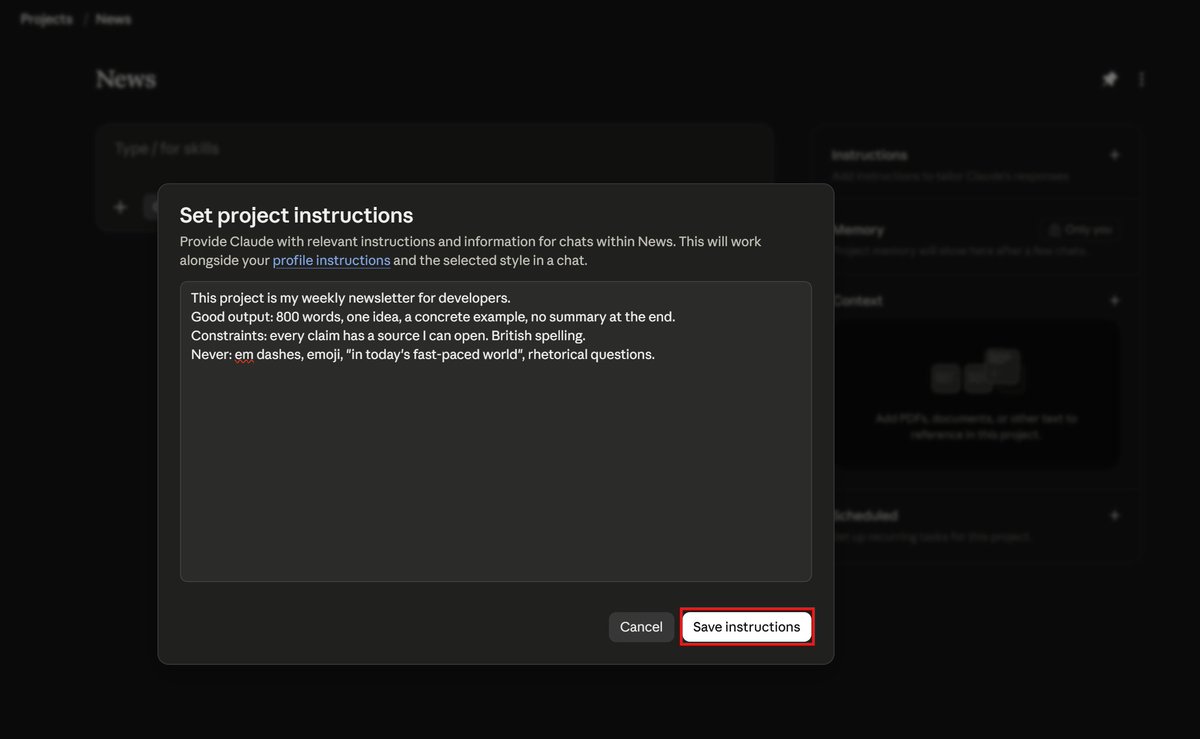
Open Instructions and write a brief, not a request. Four things, in this order: what the project is, what a good output looks like, the constraints, and what to never do. Be specific about the last one, it does more work than the rest.
Save what we just did as a skill called "Source check".
Include the steps, the rule that every claim needs a link I can open,
the output format, and that it flags anything it could not verify
instead of dropping it.
Then add your reference material to Project knowledge: style guides, past work, anything you would otherwise paste in. Uploaded once, available in every chat inside that project.
From now on, start your chats inside the project rather than in a blank window. That single change is most of what people mean when they say their setup got better.
One habit: when Claude gets something wrong twice in the same project, add a line to the instructions instead of correcting it again in chat.
Build this as an xlsx. One row per charge, columns for service, date,
amount and source file. Add a summary sheet with monthly totals as
formulas, not pasted values.
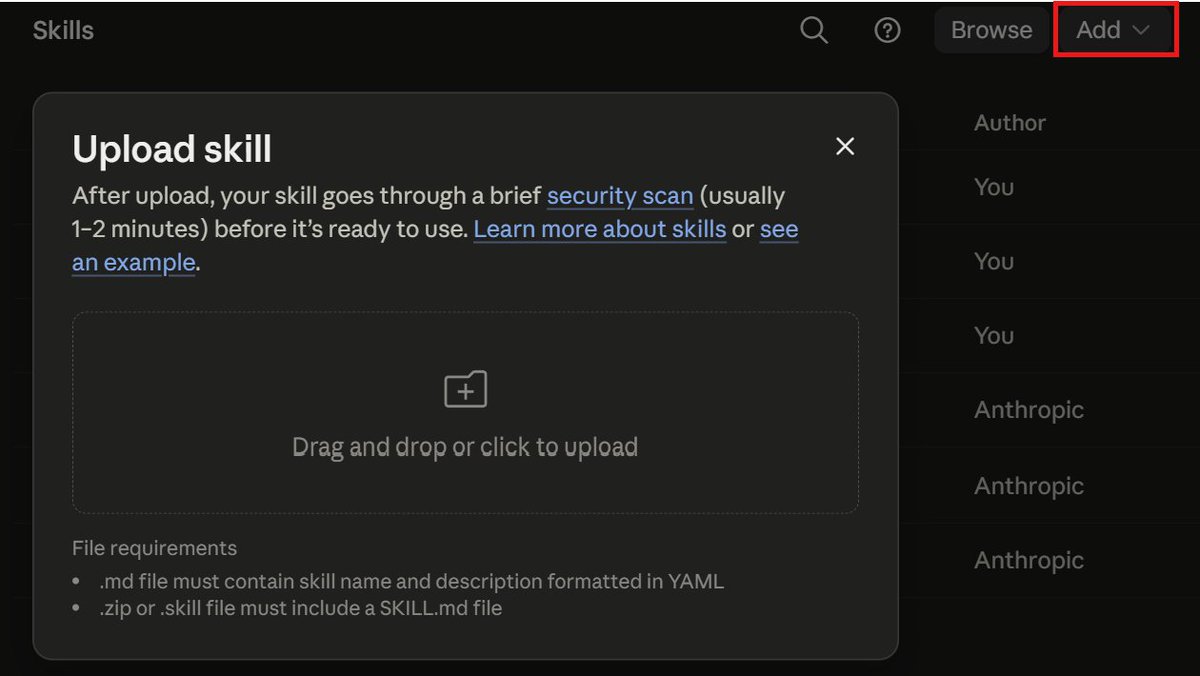
3. Save your repeated methods as skills
Settings → Skills
A project holds context. A skill holds a method.
If you do something the same way every time: how you research a topic, how you structure a report, how you review a pull request, that is a skill. Written once, it works in any chat, and Claude pulls it in when the task matches.
The order that makes them good: do the task manually twice, get the output right, then ask Claude to write the skill from what you just did. Skills written from imagination are guesses about your own process.
A useful skill names five things: when to use it, what it needs from you, the steps, what the output should look like, and what it must never do. Missing the last two is why most skills produce something almost right.
Skills follow an open standard now, so the same file works in other tools, and teams can share one set.
You can also install skills other people wrote instead of starting from scratch: Anthropic publishes its own at github.com/anthropics/skills, and there are community directories at agentskills.io and claude.com/connectors.
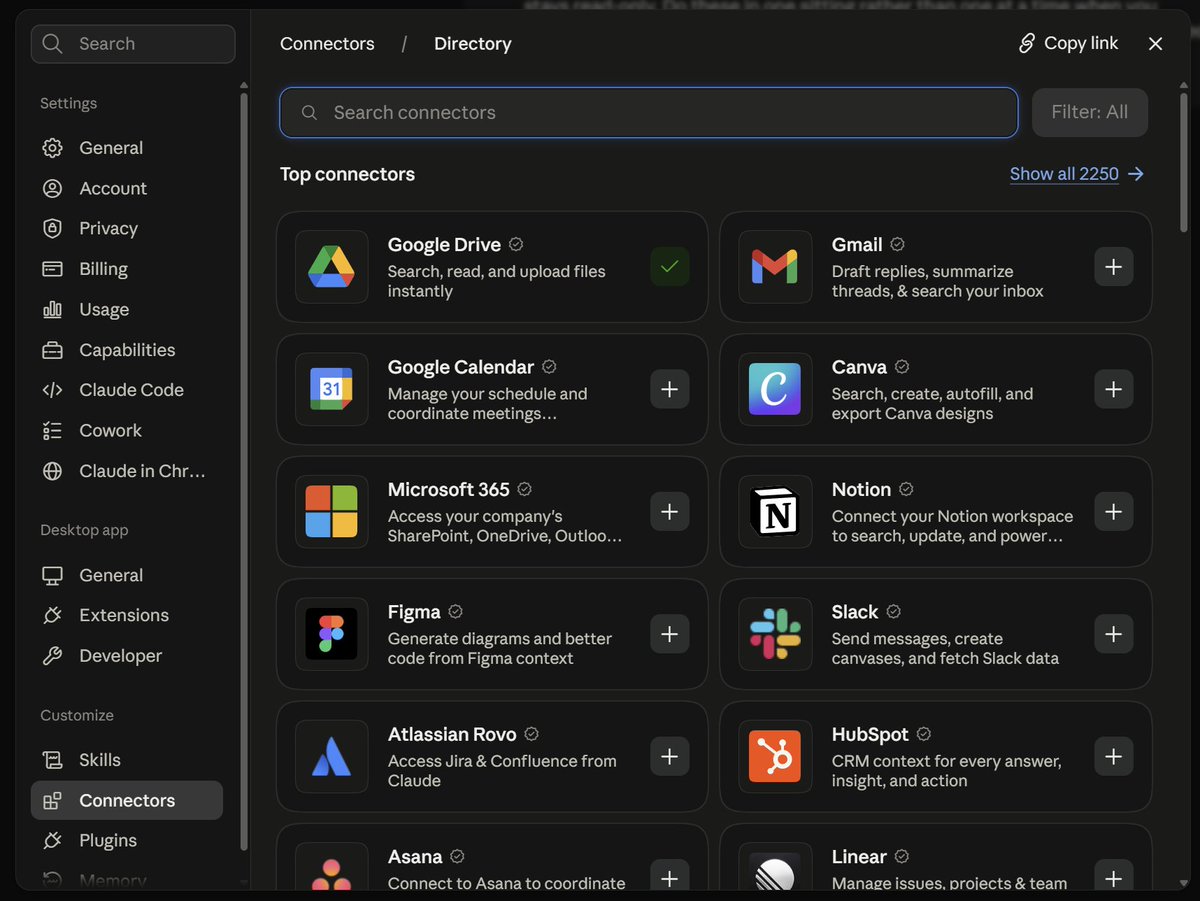
4. Connect your tools, all of them, in one sitting
Settings → Connectors
Every connector is one more place Claude reads from without you pasting anything into the chat.
Do them all at once, not one at a time when you happen to need them. The value shows up when several are connected and Claude can move between them: pull the thread from mail, check the date in the calendar, write the result into the doc.
Worth having:
- Gmail or Microsoft 365 - reads your threads. The Microsoft one now also drafts and sends, manages the calendar, and creates files in OneDrive and SharePoint
- Google Calendar - scheduling, and answering anything that starts with "when did we"
- Google Drive - your documents, without uploading them again
- Notion - turns your existing notes into context instead of an archive
- Slack - pulls the decision out of a thread you were not in
- GitHub - issues, pull requests, and the state of a repo
- Linear or Jira - what is actually assigned to you this week Two checks. Grant access to the accounts you use for work, not everything you own. Then ask something small and verifiable, like what meetings you have tomorrow, because a connector that authorised but scoped wrong fails silently.
This project is my weekly newsletter for developers.
Good output: 800 words, one idea, a concrete example, no summary at the end.
Constraints: every claim has a source I can open. British spelling.
Never: em dashes, emoji, "in today's fast-paced world", rhetorical questions.
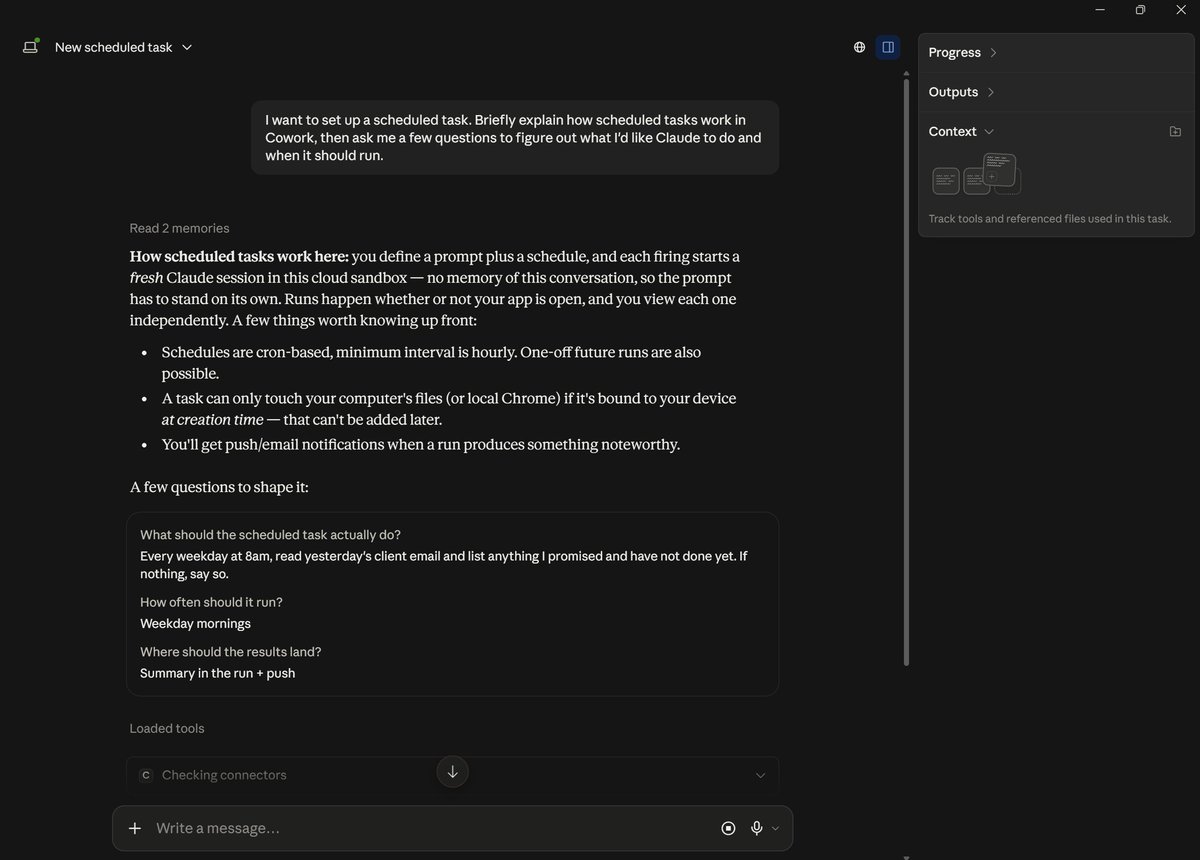
5. Put the boring recurring work on a schedule
Sidebar → Scheduled tasks → New Task → Create with Claude
A scheduled task is an instruction plus a time. Sessions run in the cloud, so it fires whether or not your laptop is on.
Three that pay off immediately: a morning inbox digest, a Friday summary of what changed in the docs or repos you track, and a weekly pass over your own notes for anything you left unfinished.
Write it against a project, not from a blank window, so it inherits the instructions and files you already set up.
Two rules. Keep the first ones read-only — reporting, not sending, not posting. And read the first run instead of assuming it worked; five minutes there saves a month of quietly wrong output arriving every morning at eight.
6. Stop rewriting whole documents
When Claude writes something long, it opens beside the chat. You do not have to describe your edit in a paragraph and wait for the whole thing again.
Highlight the part you want changed, type what should be different, and it rewrites that section only. The rest stays exactly as it was, which matters when the rest was already right.
Use it for the passes you always do anyway: cut this section in half, make this paragraph concrete, drop the closing summary.
This is also where projects pay off again. Edit inside the project and the fixes land against your instructions, so the same mistake shows up less next time.
7. Ask for files, not answers
Claude creates and edits Excel workbooks, PowerPoint decks, Word documents and PDFs directly.
An answer in chat is something you still have to turn into work. A file is the work. Ask for the spreadsheet with the formulas in it, not the numbers to paste into one.
Say the format up front and be specific about the shape:
Every weekday at 8am, read yesterday's client email and list anything
I promised and have not done yet. If nothing, say so.
It reads files the same way. Upload a contract, a stack of invoices or a messy CSV and ask for the extraction as a file rather than a table in the chat.
One rule: check the first one properly. Formulas and page counts are where the errors hide, and they are invisible in a chat answer.
8. Work inside Excel and PowerPoint
If your work lives in those two, install the add-ins and stop moving files back and forth.
Claude sits in a side panel and edits the open document: writes formulas, cleans a column, restyles a deck. Both add-ins share the same conversation, so the numbers you worked through in the sheet are still context when you build the slides. Your skills apply there too, which means the formatting rules you wrote once hold in both.
Worth knowing: it edits what is actually in the file, so keep a copy of anything you cannot afford to have rewritten, at least until you trust it.
9. Give it your browser
The Chrome extension covers everything behind a login that never offered an API. It uses your existing sessions, so it reaches the internal portal, the analytics dashboard and the supplier site that will never have an integration.
Three things worth setting up on day one. Record a workflow once and it repeats it later. Schedule browser tasks so they run without you. Save the prompts you retype as slash commands. It also reads the browser console, which makes it useful for debugging your own site.
Two rules, and they matter more here than anywhere else in this article. Start with read-only work for a week so you learn where it misreads a page while mistakes are still free. And keep anything that sends, buys, publishes or deletes behind your own approval, because it is operating as you, in your accounts.
10. Let it use the computer when nothing else fits
Cowork, Pro and Max, research preview
Claude opens files, clicks around and works with what is on screen. No integration, no setup, no API required.
Use it as the last option, not the first. A connector is faster and does not break when a button moves. This is for desktop software and internal systems that never offered another way in: the legacy tool, the export nobody automated, the app with no web version.
It is slower than everything else here and it needs supervision, so give it bounded jobs with a clear end state rather than open-ended ones.
11. Ask for the chart, not the description
Claude renders charts, diagrams and interactive visualisations inline. Most people describe what they want to see and get a paragraph describing it back. Say "show me" and you get the thing itself.
Two habits worth keeping.
Check the data before you plot it. Upload the CSV and ask what is wrong with it first: duplicates, gaps, values that cannot be right. A clean chart of dirty data is worse than no chart.
Then iterate in the same message thread rather than re-uploading. Change the axis, split by segment, switch to a different cut. It rebuilds each time from the same file.
This is also the fastest way to explain something to someone else. A flow diagram of your own process takes one sentence to request and reads better than the three paragraphs you were about to write.
The order is the point
Memory and projects first, because everything else reads from them. Skills next, because they turn your methods into something reusable. Connectors after that, because a skill without access to your tools is just text. Automation last, once you know the thing works.
People who skip to automation end up with a schedule that produces something wrong every morning at eight.
The whole setup takes an evening. What you get back is the twenty minutes a day you currently spend explaining yourself to a blank chat, plus everything you were not doing at all because setting it up manually was never worth it.
Rollouts land in waves, so if a feature is not in your account yet, it is coming rather than missing.